Every WordPress post and page has an internal numeric ID. Themes, plugins, shortcodes, code snippets, API requests, and database tools may ask for that ID even when the public page uses a readable permalink such as /about-us/.
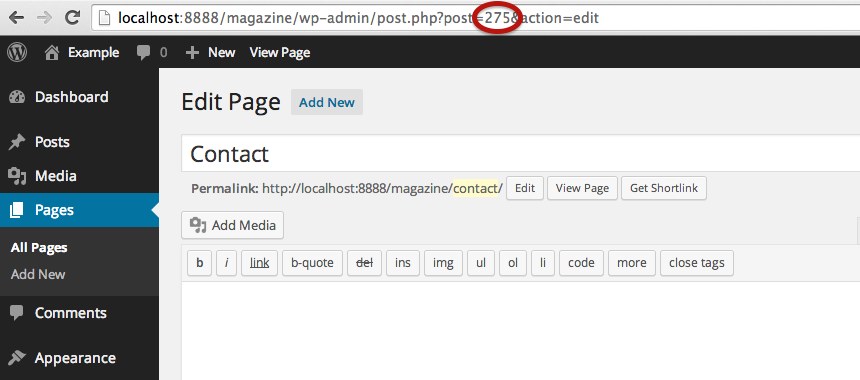
Example editor URL:https://example.com/wp-admin/post.php?post=1234&action=edit
What is a WordPress ID?
An ID is a database-backed integer used to distinguish one object from another. A post title or slug can change, but the numeric ID normally remains attached to that object throughout its life. Posts and pages are both stored as WordPress post objects, as are several other content types such as attachments and custom post types.
Content
Posts, pages, attachments, revisions, templates, products, events, and other custom post types.
Taxonomy terms
Categories, tags, product categories, and other custom terms.
People and discussion
Users and comments have their own numeric identifiers.
Navigation and settings
Menu items and many plugin-managed records may also expose IDs.
Method 1: Open the post or page editor
- Open the content list. In the dashboard, go to Posts > All Posts or Pages > All Pages.
- Select the item. Click its title or the Edit action.
- Inspect the address bar. Find the number after
post=. - Copy only the number. In
post=1234&action=edit, the ID is1234.
Method 2: Hover over the title or Edit link
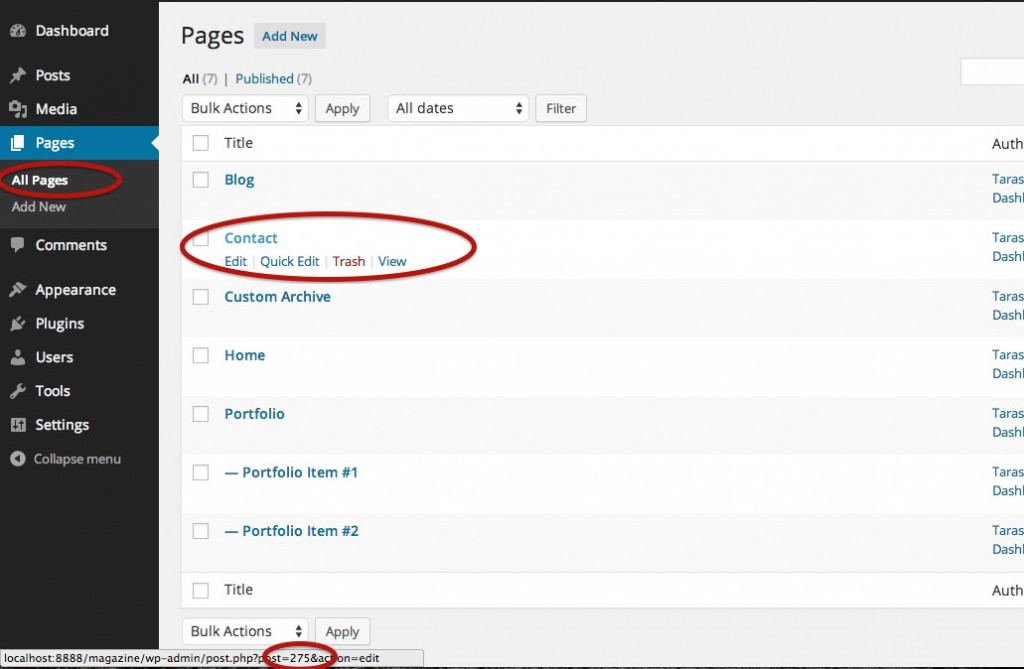
On a desktop browser, open the Posts or Pages list and place the pointer over the title or Edit action. Many browsers show the destination URL in a status area near the bottom of the window. Look for the post= parameter and read the number that follows it.
Find IDs for other WordPress content
Media attachment ID
Go to Media > Library and open the attachment details or edit screen. Depending on the view, the URL may contain item=1234, attachment_id=1234, or post=1234. The attachment is stored as a post object, so its ID may also be used with post-related developer functions.
Category or tag ID
Open Posts > Categories or Posts > Tags, then edit the term. Look for a parameter such as tag_ID=37. Despite the parameter name, WordPress commonly uses this edit screen for category, tag, and custom-taxonomy term IDs.
User ID
Users with permission to view the Users screen can open a user profile and inspect the URL for a parameter such as user_id=8. Do not expose private profile information simply because an ID is known.
Comment ID
Open the Comments screen and select or edit a comment. The destination may contain a parameter such as c=245 or another comment-specific ID value, depending on the action and interface.
Menu item ID
Navigation menu IDs are often needed by developers rather than editors. Classic-menu screens, HTML markup, REST responses, or database-backed developer tools may expose identifiers for menu items. A menu item ID is not necessarily the same as the page ID it links to.
Find IDs with the WordPress REST API
When the REST API is available, built-in content endpoints return JSON objects with an id property. A public post collection can be requested from:
https://example.com/wp-json/wp/v2/postsTo find a post by its slug, use the collection’s slug query parameter and inspect the returned object:
https://example.com/wp-json/wp/v2/posts?slug=sample-postPages use the corresponding pages endpoint:
https://example.com/wp-json/wp/v2/pages?slug=aboutA successful response may resemble:
[
  {
    "id": 1234,
    "date": "2026-07-17T10:30:00",
    "slug": "sample-post",
    "status": "publish"
  }
]Find or use IDs in theme and plugin code
WordPress provides functions for retrieving the current item or resolving an item from another value. Use these functions in a plugin, child theme, or controlled development environment rather than editing WordPress core files.
Get the current post ID inside the Loop
<?php
$post_id = get_the_ID();

if ( $post_id ) {
    echo esc_html( (string) $post_id );
}
?>
Retrieve a post when the ID is already known
<?php
$post = get_post( 1234 );

if ( $post instanceof WP_Post ) {
    echo esc_html( $post->post_title );
}
?>
Attempt to resolve a public URL to a post ID
<?php
$url     = 'https://example.com/sample-post/';
$post_id = url_to_postid( $url );

if ( $post_id ) {
    echo esc_html( (string) $post_id );
}
?>
url_to_postid() is useful for many standard permalink structures, but custom rewrite rules or unusual content routing can prevent a URL from resolving. When code already has access to a post object, read its ID property rather than resolving the public URL again.
Do not confuse an ID with a permalink
A site using plain permalinks may display a public URL such as https://example.com/?p=1234. The value after p= is the post ID. With readable permalinks, the public URL may contain only the post slug, but the underlying ID still exists.
Plain public permalink:https://example.com/?p=1234
Changing the permalink structure or editing a slug does not normally create a new ID. Duplicating or recreating content, however, produces a different object with a new ID.
Security and privacy considerations
A WordPress ID is not a password or secret token. Public content IDs can often be inferred from links or APIs. Security must depend on authentication, authorization, nonces, validation, and server-side permission checks—not on hiding numeric IDs.
- Do not grant access merely because a request contains a valid post or user ID.
- Check capabilities before reading or changing protected content.
- Use nonces for appropriate administrative actions, but do not treat a nonce as authorization by itself.
- Escape output and validate incoming IDs before using them.
- Do not publish private user, order, customer, or membership information alongside an ID.
Troubleshooting
The editor URL does not contain post=
Confirm that you are editing an existing saved item rather than creating a new draft that has not finished loading. Some hosted dashboards or plugins may wrap or replace the standard WordPress editor. Try the All Posts or All Pages list and inspect the Edit destination.
The number changes after duplicating a page
A duplicate is a new database object, so WordPress assigns it a new ID even when the title and content are nearly identical.
A shortcode or plugin rejects the ID
Confirm which object type the field expects. A page ID, attachment ID, category term ID, menu item ID, and user ID are different values even if two happen to share the same number.
The REST API returns an empty array
Check the endpoint, content type, slug spelling, publication status, authentication, and whether the post type is exposed through REST. A private or draft item will not normally appear in an unauthenticated public request.
The hover preview is missing
Use the editor-address method instead. Hover previews depend on the browser and are unavailable on most touch interfaces.
What changed from the original 2014 tutorial
The original page demonstrated two reliable techniques: hovering over an item in the Posts or Pages list and opening its Edit screen to inspect the address bar. Both methods are preserved. This revised guide adds clearer URL examples, IDs for other WordPress object types, REST API usage, developer functions, privacy guidance, and troubleshooting.
Article status
Archived discussion
The original page included an inactive reply form but no preserved comments. The form has been removed so visitors are not asked to submit personal information to an endpoint that may no longer work.
Questions, corrections, and feedback about this tutorial can be sent through the redesigned TDWP contact page.