WordPress can show either your latest posts or a selected page at the site root. A static homepage is useful when visitors need an introduction, services, featured content, navigation choices, or a clear next step before they reach the chronological blog archive.
Static page
Create a Home page, design its content, and select it as the homepage under Reading settings.
Site Editor
Edit the page content and its surrounding template through the block editor and Appearance > Editor.
Theme template
Use the front-page and home templates when the layout must be controlled in the theme itself.
1. Plan the homepage before building it
Start with the visitor’s first decision. A useful homepage should quickly explain what the site offers, show where to go next, and avoid competing calls to action. The exact sections depend on the site, but most custom homepages benefit from a concise introduction and a small number of well-labeled paths.
- State the site’s purpose: explain what visitors can find or accomplish.
- Choose one primary action: browse products, read articles, request information, subscribe, or view a portfolio.
- Surface important content: feature categories, services, recent articles, case studies, or other priority pages.
- Add trust information: identify the publisher, explain expertise, and link to About and Contact pages.
- Keep the layout focused: remove sections that do not help visitors understand or use the site.
2. Create separate Home and Blog pages
- Create the homepage. Go to Pages > Add New Page, name the page Home or another clear title, add the initial content, and publish it.
- Create the posts page. Add a second page named Blog, News, Articles, or another label that fits the site. Publish it without building a manual list of posts.
- Use two different pages. WordPress cannot use the same page as both the static homepage and the posts page.
- Review discussion settings. If the theme shows comments on pages, use the page settings or the guidance in How to Remove Comments from a Specific Post or Page.
3. Design the homepage content
Open the Home page in the WordPress editor. With the block editor, build the page from headings, paragraphs, images, buttons, columns, query loops, patterns, and other supported blocks. Keep heading levels logical: use one page-level heading, then organize major sections with second-level headings.
A practical homepage structure might include:
- An introductory hero with one clear heading and action.
- A brief explanation of the site, organization, or publication.
- Featured services, themes, resources, articles, or categories.
- Evidence that supports trust, such as transparent authorship or genuine testimonials.
- A final call to action and a clear route to contact information.
Classic themes may provide a selectable page template in the page settings. Choose a homepage or full-width template only when the theme documents what it does. Avoid editing a parent theme directly, because updates can overwrite those changes. For layout adjustments, use the theme’s supported controls, a child theme, or the techniques covered in How to Add Custom CSS to a WordPress Theme.
4. Assign the homepage and posts page
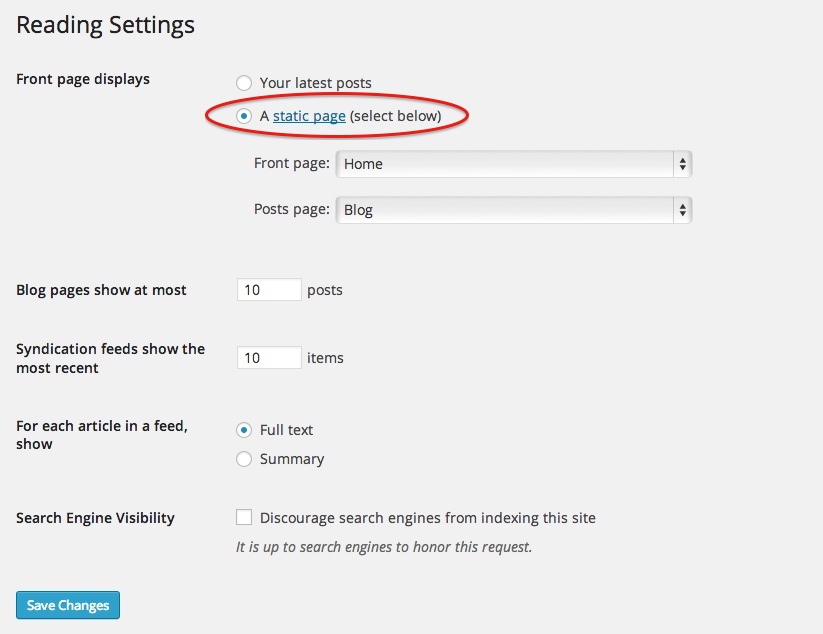
- Open Reading settings. In the dashboard, go to Settings > Reading.
- Choose a static page. Under Your homepage displays, select A static page.
- Select the Homepage. Choose the Home page you created.
- Select the Posts page. Choose the separate Blog or Articles page.
- Save the changes. Visit the public site root and confirm that the correct page appears.
5. Customize a block-theme homepage
Block themes separate page content from the template that surrounds it. Edit the Home page under Pages when changing the page’s unique content. Open Appearance > Editor when changing templates, headers, footers, navigation, or other site-wide design elements.
Depending on the theme, you may be able to:
- Select or create a custom template from the Home page’s settings sidebar.
- Edit the Front Page, Home, Page, Header, or Footer template in the Site Editor.
- Insert theme patterns and then replace their placeholder text and images.
- Use the Query Loop block to show selected posts without turning the entire homepage into the posts index.
6. Understand classic theme templates
Classic themes use the template hierarchy to decide which PHP file renders each view. A theme-level front-page.php file has priority for the site front page. When a separate posts page is assigned, the theme generally uses home.php for that posts index, with index.php as the fallback.
front-page.phpcontrols the front page when the file exists.home.phpcontrols the blog posts index, including an assigned posts page.page.phpor a selected page template can render a static page when no higher-priority front-page file overrides it.index.phpis the final theme fallback.
Develop theme changes in a child theme or a controlled development environment. Do not create a custom page template simply to imitate the normal posts index; use the theme’s blog-index template so pagination and archive behavior remain reliable.
7. Update navigation and internal links
After assigning the pages, confirm that menus point to the right destinations. The site logo should normally link to the homepage, while a Blog or Articles navigation item should link to the assigned posts page.
- Use descriptive menu labels rather than vague wording.
- Make the current page visually and programmatically identifiable.
- Link important homepage sections to deeper pages with meaningful anchor text.
- Avoid duplicating the same destination repeatedly without a clear reason.
- Check the mobile menu and keyboard navigation after making changes.
8. Improve homepage SEO and trust
A custom homepage should help both visitors and search engines understand the site. Do not turn it into a list of disconnected keywords or unrelated outbound links. Build the page around the website’s real purpose and the information visitors need to verify it.
- Use a specific page title and meta description.
- Include one clear H1 that describes the site rather than a generic welcome message.
- Write original introductory copy instead of relying entirely on graphics.
- Link visibly to About, Contact, terms, privacy, or other relevant policy pages.
- Use accurate testimonials, dates, availability statements, and compatibility claims.
- Add descriptive alternative text to informative images and leave decorative images with empty alt text.
- Keep critical content available without sliders, hover-only interactions, or scripts that may fail.
9. Test the finished homepage
Review the page in a private browser window and on more than one screen size. A homepage is often the most linked and most visited page on a site, so small problems can affect a large share of visitors.
- The site root displays the intended Home page.
- The Blog page displays posts and pagination correctly.
- Menus, buttons, images, forms, and internal links work.
- The page has one H1 and a logical heading sequence.
- Text remains readable at narrow widths and increased zoom.
- Keyboard focus is visible and interactive elements have clear names.
- The homepage title, canonical URL, social image, and structured data use the final public URL.
- Caching and optimization tools do not serve the previous posts index.
Troubleshooting common problems
The Reading screen does not show page selectors
Publish at least one page and reload Settings > Reading. Plugins that control front-page or post-display behavior can also alter these settings.
The homepage still shows recent posts
Confirm that A static page is selected, the intended page is assigned as Homepage, and the changes were saved. Then clear page, server, CDN, and browser caches.
The page editor changes do not appear
The active theme may be using a higher-priority Front Page template. In a block theme, inspect the Front Page template in the Site Editor. In a classic theme, check for front-page.php or a theme-specific homepage system.
The Blog page appears empty in the editor
That is expected when the page is assigned as the Posts page. WordPress and the active theme generate the post listing; the page’s normal editor content is not the primary source for that archive.
The homepage layout breaks after changing themes
Blocks, widgets, template assignments, shortcodes, and theme-specific options may not transfer cleanly. Test a theme change in staging, document the current homepage, and review every section before publishing the new theme.
What changed from the original 2014 guide
The original article correctly explained how to create separate Home and Blog pages and assign them under Reading settings. The revised guide keeps that workflow, updates the dashboard terminology, and adds block-theme editing, the Site Editor, classic template hierarchy, navigation, accessibility, SEO, trust, and troubleshooting guidance.
Official references
WordPress interfaces can vary by version and active theme. Use current official documentation when changing a production website.
Article status
Archived discussion
The original page contained an inactive WordPress reply form but no preserved comments. The nonfunctional form has been removed so visitors are not asked to submit information to an endpoint that may not process it.
Questions, corrections, and feedback about this tutorial can be sent through the redesigned TDWP contact page.